⏱ 7 min read
Introduction: connecting architecture to delivery
In modern software projects, teams use Azure DevOps to manage their work — defining features, writing user stories, assigning tasks, and tracking progress. Meanwhile, architects use Sparx Enterprise Architect (EA) to design systems, model requirements, and trace how things fit together. If these two worlds are not connected, architecture becomes disconnected from what developers actually build.
This guide explains how to integrate EA with Azure DevOps across the Software Development Lifecycle (SDLC) — from manual linking techniques through automated synchronization, covering traceability, reverse engineering, and practical scripts that bridge the gap. hybrid cloud architecture
Recommended Reading
The SDLC integration flow

The integration creates a continuous loop: architects define requirements in EA, those requirements are linked to work items in Azure DevOps, developers implement features based on those work items, testers validate against the original requirements, and EA is updated to reflect implementation status. This loop ensures that architecture models stay current and that requirements are traceable from design through delivery. multi-cloud architecture strategy
Traceability: linking EA requirements to Azure DevOps work items
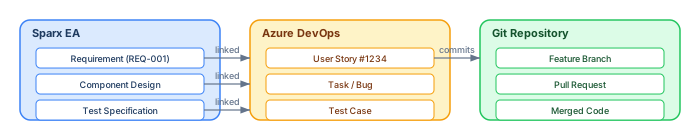
Traceability is the core value of the integration. Every EA requirement should be linkable to an Azure DevOps work item, and from there to the code that implements it. There are two approaches: manual linking and automated synchronization. event-driven architecture
Manual linking with tagged values
Step 1: Create requirements in EA with unique IDs (e.g., REQ-001, REQ-002). Use the Requirement element type with clear names and descriptions.
Step 2: Create corresponding User Stories in Azure DevOps. Include the EA requirement ID in a custom field or the description.
Step 3: In EA, add a tagged value AzDevOps_ID or WorkItemURL to each requirement, containing the Azure DevOps work item ID or URL.
Step 4: Maintain status synchronization by periodically updating a DevStatus tagged value in EA (New, Active, Resolved, Closed) based on the Azure DevOps work item state.
Automated synchronization with scripts
For larger projects, manual linking becomes impractical. EA scripts can automate the synchronization:
// Export requirements to CSV for Azure DevOps bulk import
var sql = "SELECT o.Alias AS ReqID, o.Name, o.Notes, " +
          "tv.Value AS Priority " +
          "FROM t_object o " +
          "LEFT JOIN t_objectproperties tv ON o.Object_ID = tv.Object_ID " +
          "AND tv.Property = 'Priority' " +
          "WHERE o.Object_Type = 'Requirement' " +
          "ORDER BY o.Alias";

var result = Repository.SQLQuery(sql);
Session.Output("Requirements exported for Azure DevOps import.");
For bidirectional sync, EA's Pro Cloud Server can be configured to call Azure DevOps REST APIs via webhooks, pushing status updates when requirements change in EA and pulling work item status back. enterprise cloud architecture patterns
Integration approaches: manual vs automated

Manual integration is appropriate for small teams (under 10 people) or projects with fewer than 100 requirements. It requires discipline but no additional infrastructure. The key techniques are tagged values for linking, CSV export/import for bulk operations, and hyperlinks in EA that open Azure DevOps work items directly.
Automated integration is necessary for larger projects. EA's Pro Cloud Server supports webhook-based synchronization with Azure DevOps. Alternatively, custom scripts can use the Azure DevOps REST API to push and pull data. CI/CD pipelines can include a model validation step that queries the EA repository to ensure all implemented stories are traced to architecture requirements.
PowerShell: Sync status from Azure DevOps back to EA
# Query Azure DevOps for work item status and update EA
$org = "your-org"
$project = "your-project"
$pat = "your-personal-access-token"

# Get all work items linked to EA requirements
$headers = @{ Authorization = "Basic " + [Convert]::ToBase64String([Text.Encoding]::ASCII.GetBytes(":$pat")) }
$wiql = @{ query = "SELECT [System.Id], [System.State] FROM WorkItems WHERE [Custom.EA_ReqID] <> ''" } | ConvertTo-Json

$result = Invoke-RestMethod -Uri "https://dev.azure.com/$org/$project/_apis/wit/wiql?api-version=7.0" -Method Post -Headers $headers -Body $wiql -ContentType "application/json"

# Update EA via COM API
$ea = New-Object -ComObject EA.Repository
$ea.OpenFile("C:\models\project.eapx")

foreach ($wi in $result.workItems) {
    # Map work item state to EA requirement status
    $detail = Invoke-RestMethod -Uri "https://dev.azure.com/$org/$project/_apis/wit/workitems/$($wi.id)?api-version=7.0" -Headers $headers
    $reqId = $detail.fields.'Custom.EA_ReqID'
    $state = $detail.fields.'System.State'

    # Update EA requirement tagged value
    $sql = "UPDATE t_objectproperties SET Value = '$state' WHERE Property = 'DevStatus' AND Object_ID IN (SELECT Object_ID FROM t_object WHERE Alias = '$reqId')"
    $ea.Execute($sql)
}
$ea.CloseFile()
Reverse engineering: from code back into EA
If your Azure DevOps project includes Git repositories, EA can reverse-engineer the code to create class diagrams and component models. This closes the loop: architecture → requirements → code → architecture.
Steps: Clone the Git repository from Azure DevOps. In EA, go to Code Engineering → Import Source Directory. Select the programming language (C#, Java, Python). EA generates class diagrams and code models. Link the generated classes to the original requirements via Realization relationships.
This reverse engineering is particularly valuable for architecture compliance: you can verify that the implemented code structure matches the designed component architecture, and trace any gaps back to specific requirements.
Best practices for EA + Azure DevOps integration
Establish a consistent ID scheme. Use the same requirement IDs across both tools. EA's Alias field is ideal for storing the canonical requirement ID.
Sync at defined cadence, not continuously. For most teams, daily or weekly synchronization is sufficient. Continuous real-time sync creates unnecessary load and complexity.
Create traceability views in EA. Build diagrams that show the chain: Requirement → Component → User Story → Test Case. These views make compliance reporting straightforward.
Use EA dashboards for status visibility. Configure Prolaborate or WebEA dashboards that show requirement implementation status, pulling data from the tagged values that the sync process maintains.
Document the integration process. Write a one-page guide for the team explaining how linking works, who is responsible for sync, and what to do when discrepancies are found.
Conclusion
Connecting EA and Azure DevOps transforms architecture from a design-time activity into a continuous governance mechanism that spans the entire SDLC. Whether you start with manual tagged-value linking or invest in automated synchronization, the key is traceability: the ability to trace any requirement from its architecture origin through development, testing, and deployment. EA governance checklist
Start simple. Tag your requirements in EA with Azure DevOps work item IDs. Export CSV for bulk synchronization. Build a traceability view. Once the team sees the value of connected architecture, invest in automation. The connection turns your architecture into a living part of your agile project workflow.
If you’d like hands-on training tailored to your team — Sparx Enterprise Architect, BPMN, SysML or the Archi tool — or modelling coaching in ArchiMate and TOGAF-aligned governance, you can reach us via our contact page.
Frequently Asked Questions
What is enterprise architecture?
Enterprise architecture is a discipline that aligns an organisation's strategy, business operations, information systems, and technology infrastructure. It provides a structured framework for understanding how an enterprise works today, where it needs to go, and how to manage the transition.
How is ArchiMate used in enterprise architecture practice?
ArchiMate is used as the standard modeling language in enterprise architecture practice. It enables architects to create consistent, layered models covering business capabilities, application services, data flows, and technology infrastructure — all traceable from strategic goals to implementation.
What tools are used for enterprise architecture modeling?
Common enterprise architecture modeling tools include Sparx Enterprise Architect (Sparx EA), Archi, BiZZdesign Enterprise Studio, LeanIX, and Orbus iServer. Sparx EA is widely used for its ArchiMate, UML, BPMN and SysML support combined with powerful automation and scripting capabilities.